
Use cases · Color variation
The same garment in another color, no new photo.
Photographed the garment in one color and sell it in several? Write the color in Studio and generate the same garment in the new color, with the same model and the same scene.
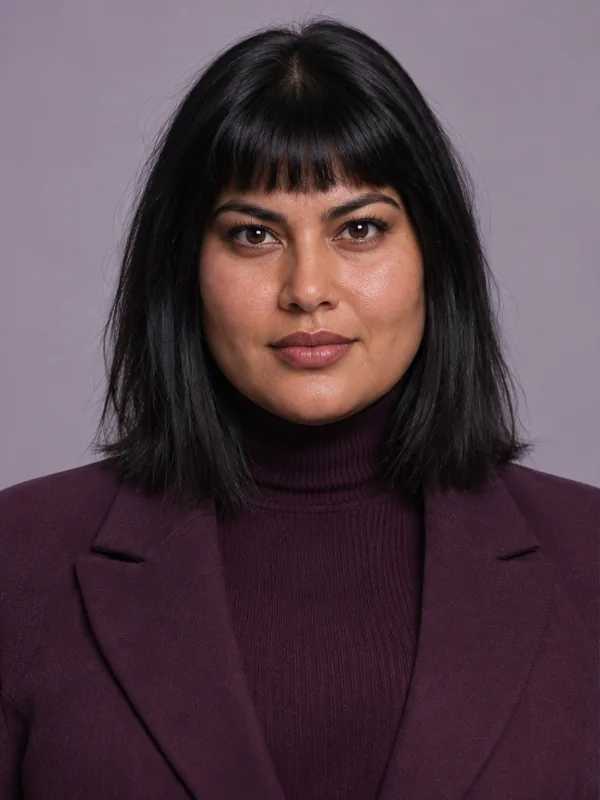
- 01
One photo of the garment
You upload the garment in one color; the new color goes in writing.
- 02
Same model, same scene
Ask to change only the color of the garment, then check the result.
- 03
Photos for each variation
In Studio, 1 credit generates a 4-photo pack of the garment in the new color.
How it works
In the Studio's Style step, write the color in the "Another color for this garment" field (40-character limit), and generate the photo. The model, scene and format stay the ones you chose. If left empty, the field keeps the original color from the photo.
The request to the generator is to change the garment's color and keep the print, texture and fit the same as in the photo you uploaded. The request review shows the written color before you confirm.
Write the color the way the customer would say it
The color goes in as text, not as a color code. Prefer names that describe the shade, like "navy blue", "moss green" or "off-white", over the collection's commercial name, which only your store knows.
Compare the generated photo with the real garment in that color before publishing. If the shade doesn't match, adjust the name and generate again.
A cover photo for each listing variation
Mercado Livre asks for a cover photo for each listing variation, and your own store's product page also swaps the photo when the customer picks another color.
With the same model and the same scene in every color, your customer compares the options without distraction: the only thing that changes between photos is what changes on the garment.
When to photograph the garment in the other color
Changing the color by text handles most variations. Photograph the actual garment when:
- The exact shade matters, like a collection color your customer compares with another piece.
- The fabric changes from one color to another, for example a shiny shade and a matte one.
- The color hasn't reached your inventory yet: only list the colors you have ready to ship.
How much it costs
In Studio, 1 credit generates a 4-photo pack of the garment in your chosen color. One garment in four colors costs 4 credits for a 16-photo set.
Eligible new sign-ups can try Studio free with a 3-pack allowance (total photos: up to 12), no card required. Test with your best-selling garment and compare the colors side by side in the Library.
Frequently asked questions
Can I generate the same clothes in another color?
Yes. In the Style step, write the color in "Another color for this garment" (40-character limit). The model and the scene stay the same.
Do I need to photograph the garment in each color?
No. A photo of the garment in one color is enough. Photograph the garment in the other color only when the exact shade matters or when the fabric changes from one color to another.
Does the print change when I change the color?
The request to the generator is to change the color and keep the print, texture and fit the same as in the photo you uploaded. As with any generated photo, check the result before publishing.
How much does each color cost?
Changing the color doesn't change the cost. In Studio, 1 credit generates a 4-photo pack of the garment in the chosen color.